Add 3D scene
The 3D Scene node is capable of showing any 3D model content in the standard GLB file format. It is fairly easy to convert other popular formats such as FBX files into GLB, as most modeling tools should provid this option. Converting the standard text-based GLTF format (which many tools like Sketchfab exports in) into the GLB binary format can be done using an online converter.
The 3D Scene node is currently under development and is not available as a regular Study Element yet, but it can be added to a blueprint inside the Study Blueprint editor. Therefore, unlike the previous tutorials, you start this tutorial by immediately creating a new study blueprint.
Create a new Study Blueprint in the Assets work area
- Press the large “+” sign under Study Blueprints
- Give it a good name like “Tutorial 4 Study”
- From the node panel on the left and drag a “3D Scene” node onto the blueprint.
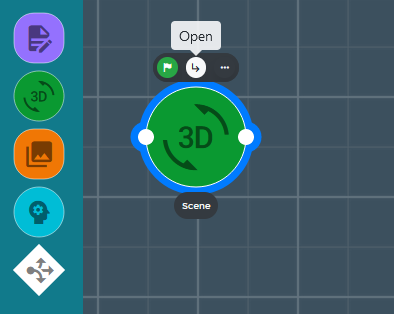
- Click on the little “Open” button at the top of the node.
- You are now in the “3D scene” path editor.
- Click on “Assets” to open up the “Asset Import Settings”

- Add the following file path and press “Apply”:
https://envalys-docs.ams3.digitaloceanspaces.com/media/sample-3d-scene/sample-3d-scene.glb
- You can fly around the model by holding the left mouse button to look around and the WASD keys on the keyboard to move.
- Pick a good first view point
- Click on “+” under “Path”
- Click on “New point”
- Replace the text “New point” with “First Stop”
- Press “Snap to View” (this will store the current camera position into this path point)
- Click on “Select Form” and pick “[Example] SpurningSjonarhorn” to add a question to this path point. The editor should look like this now:
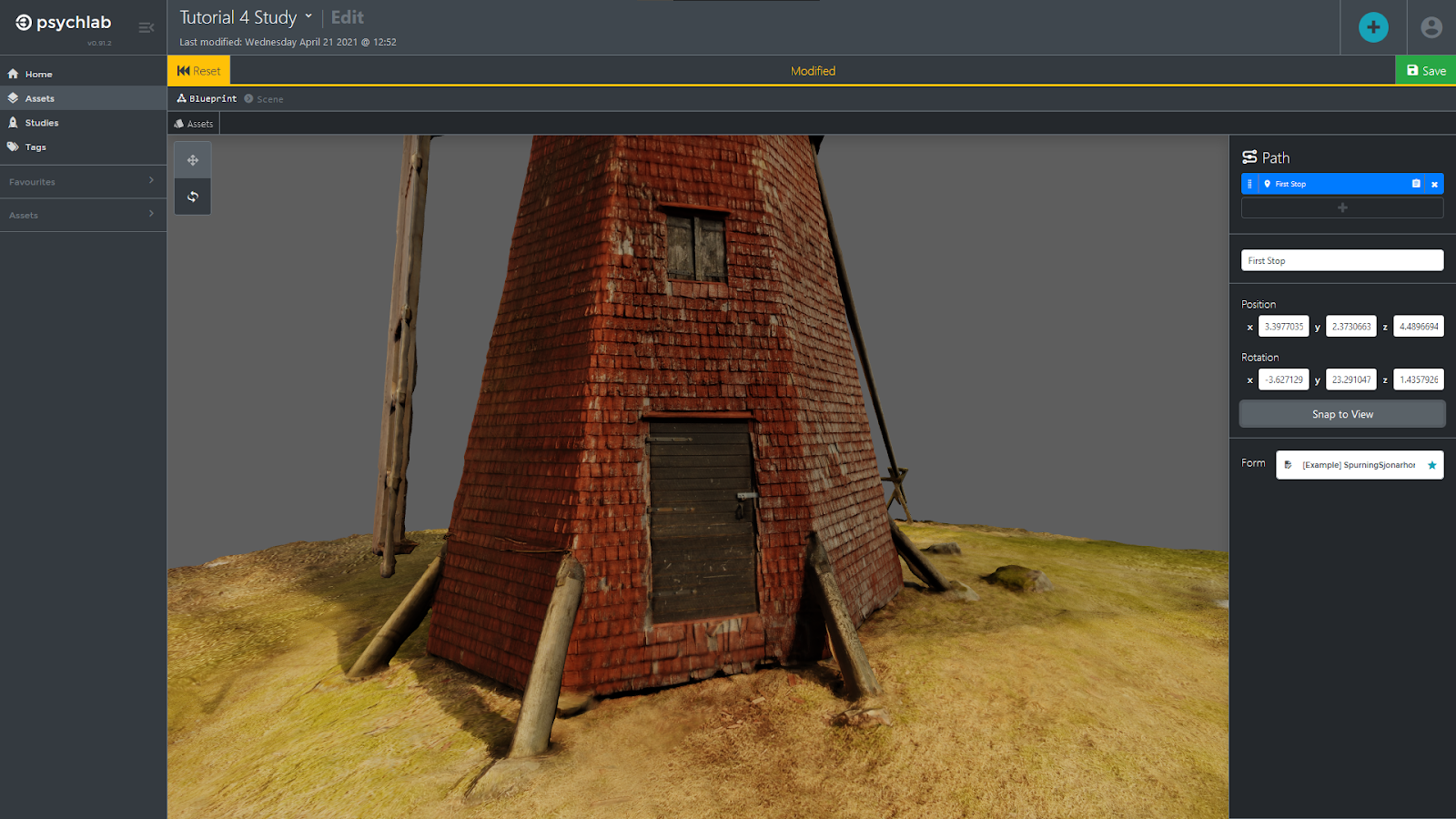
- Add at least one more point to the path in a similar manner, but remember to click on the point you are working with under “Path” before editing its properties (by default new points are not selected in this version!).
- Click on the green “Save” icon in the upper right.
- Close the Gallery edit screen by pressing the back arrow at the top of the screen next to the study blueprint name.