Gallery node
The Gallery node is a very versatile study element node that can take participants through a sequence of image or experience items, where each item can be rated. This sequence can be in a strict order or be shuffled. The participants can also be allowed to explore them all in any order by clicking on thumbnails.
Typical uses for the gallery node include (a) showing different designs for the same location (each item is a different variation) and (b) showing different views of the same location (each item is a rendered image from a different perspective).
Gallery items can be static images, videos or special panorama videos, including the ENVALYS VRTerrain panorama experiences.
To try the gallery node, you are going to let participants rate two different design variations.
- You should have this Gallery editor screen:
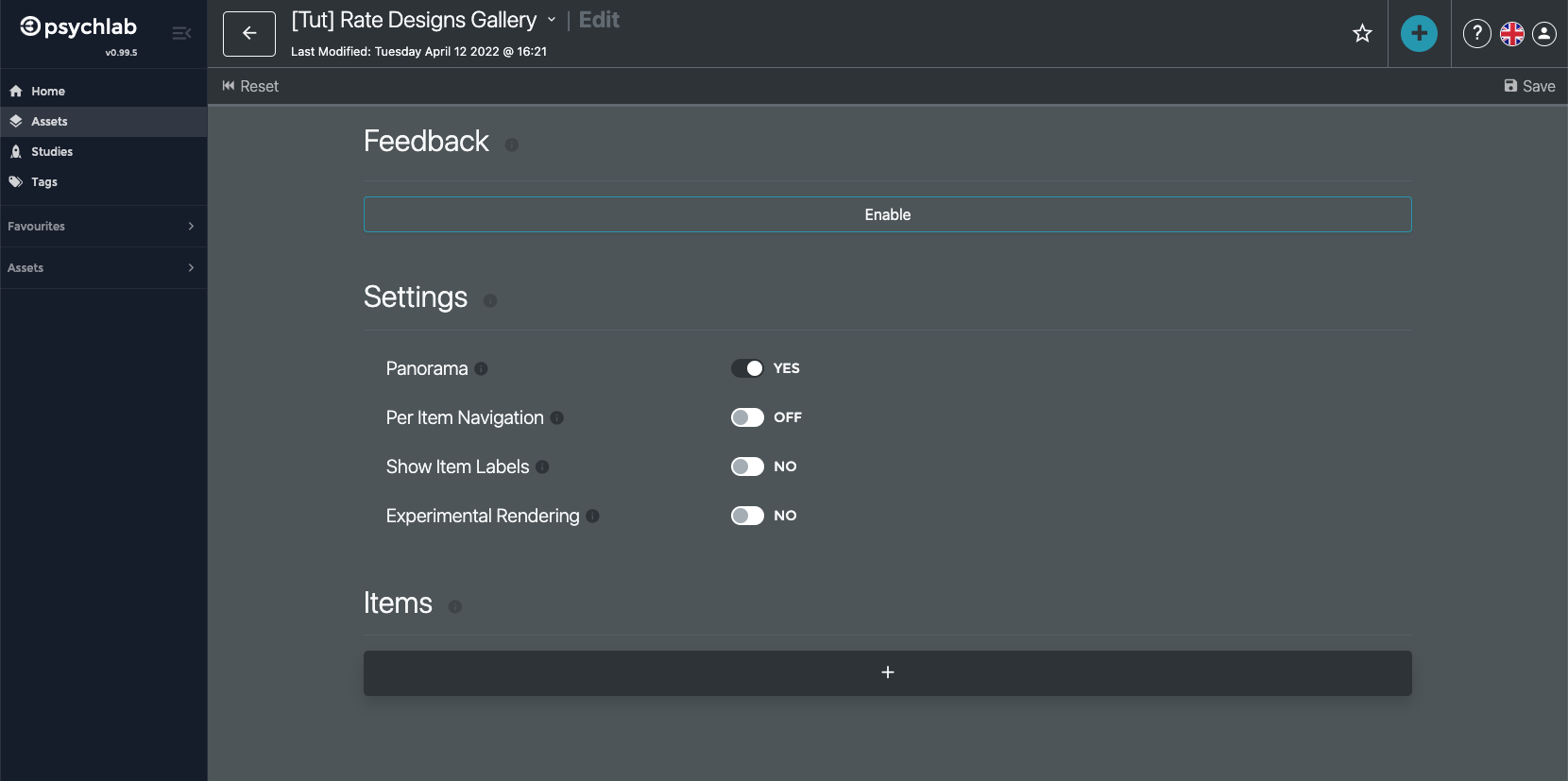
- Click on “Enable” under “Feedback”
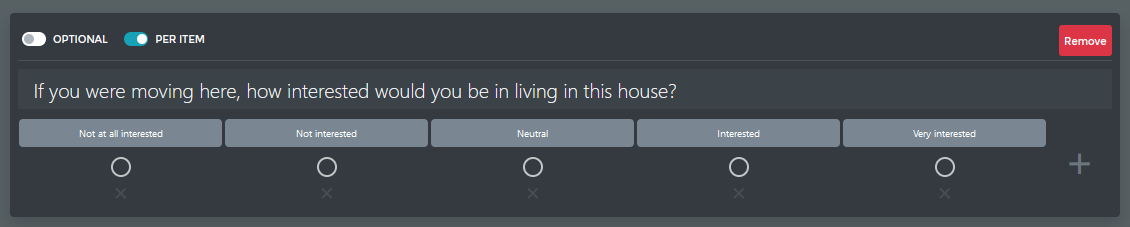
- Toggle “Per Item” to the on state
- Replace the “(untitled)” label with “If you were moving here, how interested would you be in living in this house?”
- Add the labels “Not at all interested”, “Not interested”, “Neutral”, “Interested” and “Very interested” for the 5 different linear scale items
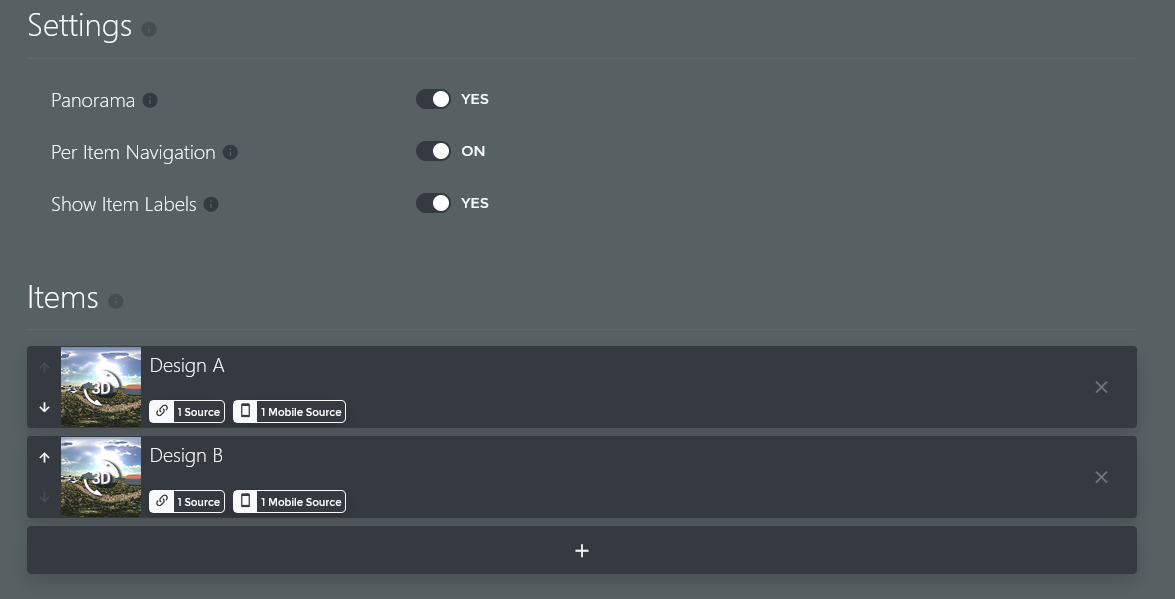
- Under “Settings”, ensure that “Panorama” is YES
- Toggle “Per Item Navigation” to ON
- Toggle “Show Item Labels” to YES
- Click on “+” under “Items” to add a new gallery item, which will be show the first variation of the design.
- Replace the “(untitled)” label with “Design A”
- Press “0 Sources” to add TWO new media sources and enter the TWO URLs in this order (press + to add URLs):
https://envalys-docs.ams3.digitaloceanspaces.com/media/blonduos/p1_v1_desktop.mp4
https://envalys-docs.ams3.digitaloceanspaces.com/media/blonduos/p1_v1_mobile.mp4
- Press “0 Mobile Sources” to add a smaller media source for mobile devices:
https://envalys-docs.ams3.digitaloceanspaces.com/media/blonduos/p1_v1_mobile.mp4
- Press the “3D” icon to the left of the sources to set a thumbnail for this item. In the thumbnail dialog, press “Auto-Generate” and “Save”. You should see a small image replace the “3D” icon.
- Click on “+” under the first item to add a second gallery item showing a different design.
- Repeat steps j. through m., but call this “Design B” and use the following media urls for desktop:
https://envalys-docs.ams3.digitaloceanspaces.com/media/blonduos/p1_v2_desktop.mp4
and mobile:
https://envalys-docs.ams3.digitaloceanspaces.com/media/blonduos/p1_v2_mobile.mp4
- The “Settings” and “Items” sections should look like this now:
- Click on the green “Save” icon in the upper right.
- Close the Gallery editor by pressing the back arrow at the top of the screen next to the Gallery element name.