Study introduction
Switch to the Assets work area from the switcher on the left.
Create a new Study Element that introduces your study to participants
- Press
+ Elementand selectForm - Type a good name, like
[Tut] Introduction, make sureOpen Editoris checked, and press theCreatebutton. - You should get the Form editor screen below
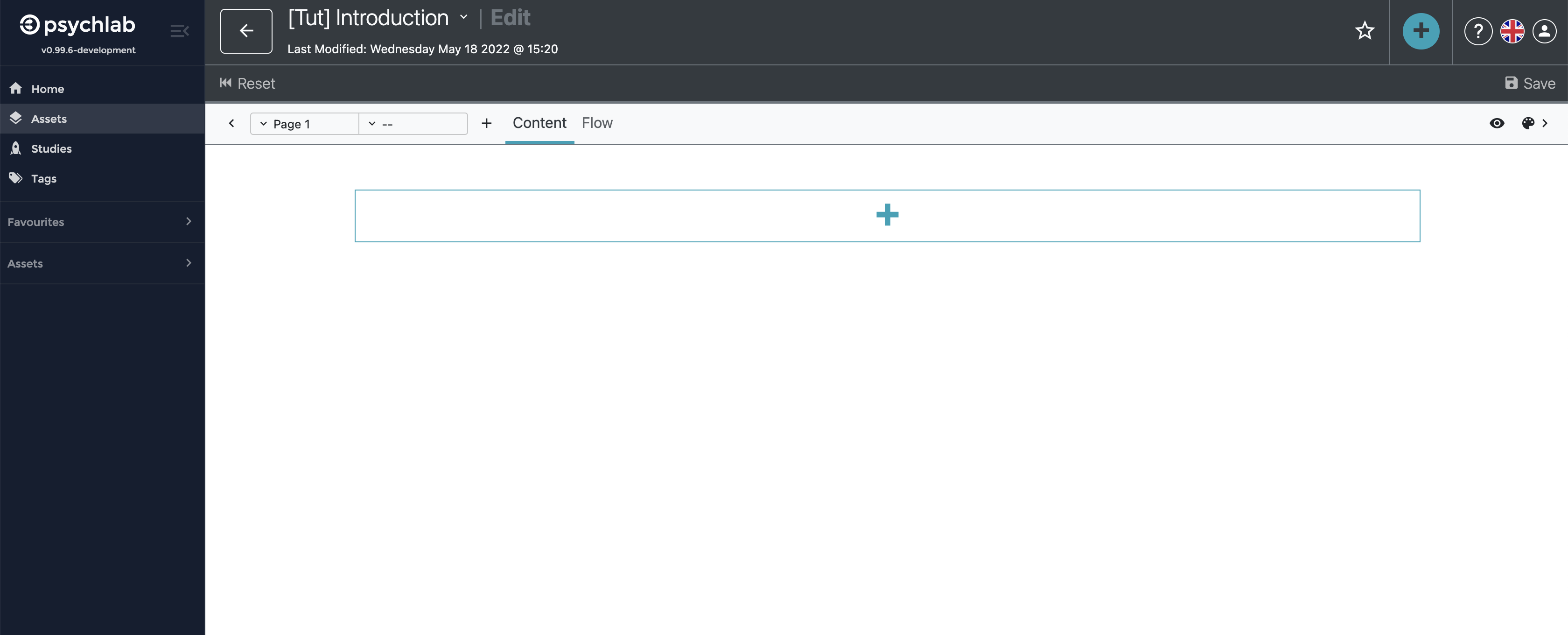
- Forms can contain multiple sections or pages. When you start the editor, the form only has a single section called “Page 1”. To see the list of all sections click on button on the left from "Page 1" label. Now let’s change the name of the section by clicking on the dots that appear when you mouse over “Page 1”, pick “Rename” and type “Main Page”.
- Click on the large “+” to start adding items to the form. Pick “Information” from the pop-up.
- Change the title text from “New Information” to “Introduction”.
- Click on “Body” and type in your introductory text, such as “Welcome to this study!” and confirm.
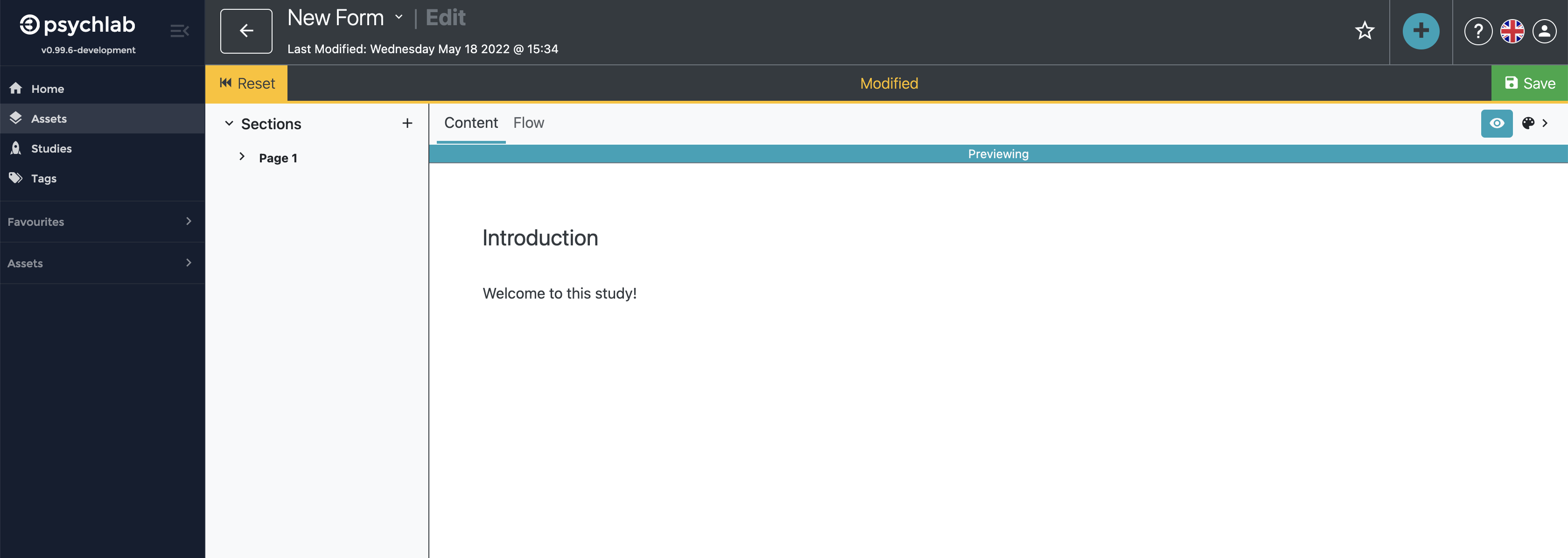
- To preview the form you have now created, press the eye icon in the upper right corner. You should get something like this:
- Click on the green “Save” icon in the upper right.
- Close the Form edit screen and return to the Assets area by clicking on the back arrow at the top of the screen (next to the name of your form).
- Press