Start study
Start a Study based on your Study Blueprint
- Enter the Studies area by clicking on Studies in the main menu in the top left.
- Find and click on your new study blueprint under Available Blueprints.
- Give your study a good name like “Tutorial 1 Study - First Run” and press “Confirm and Create”
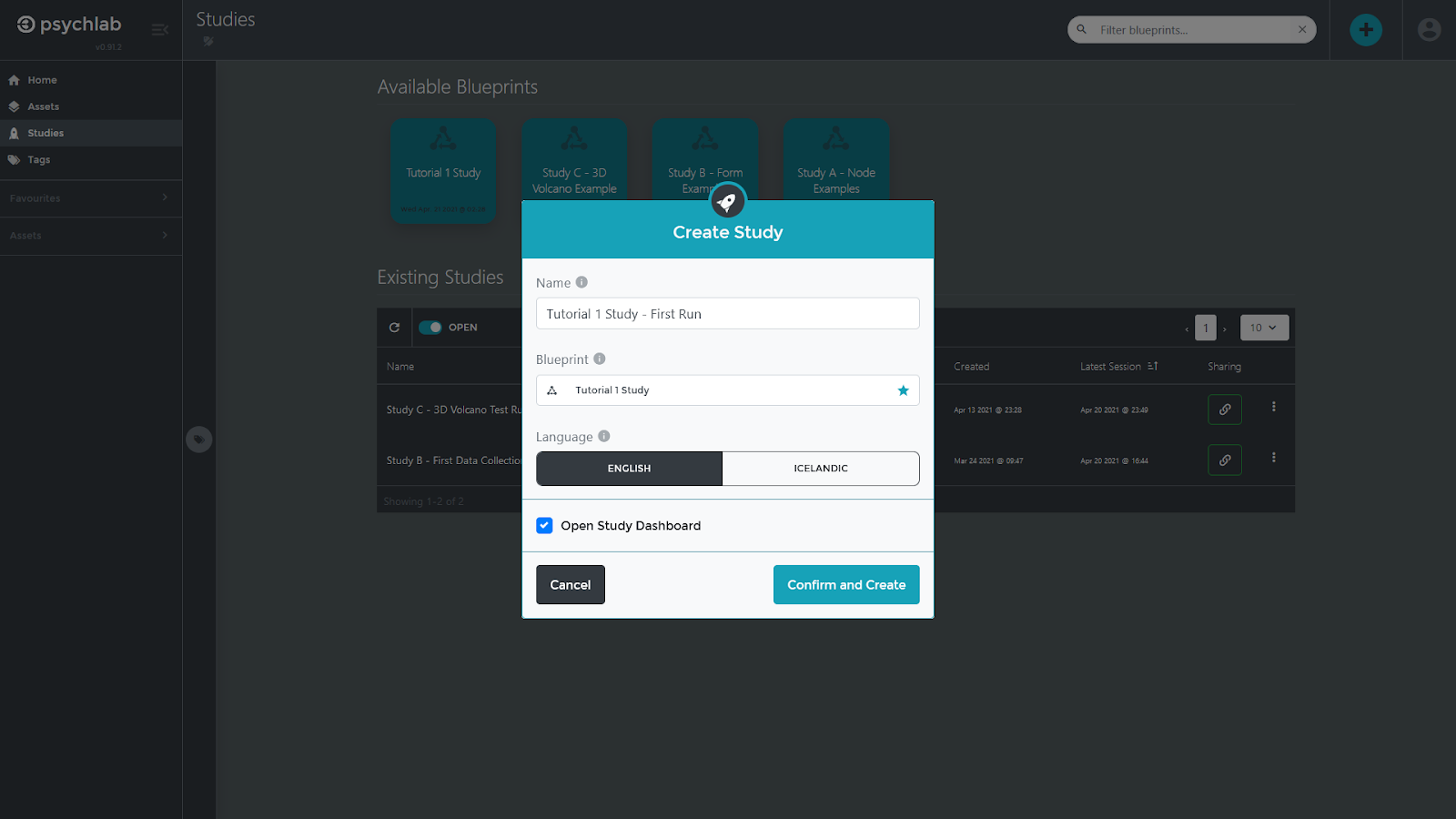
- Your study is now “live” and you have been taken to the study Dashboard (see screen shot below). From here you can copy a share link, monitor study progress and connections, browse everything that has been collected so far, export data as files, and stop the study.
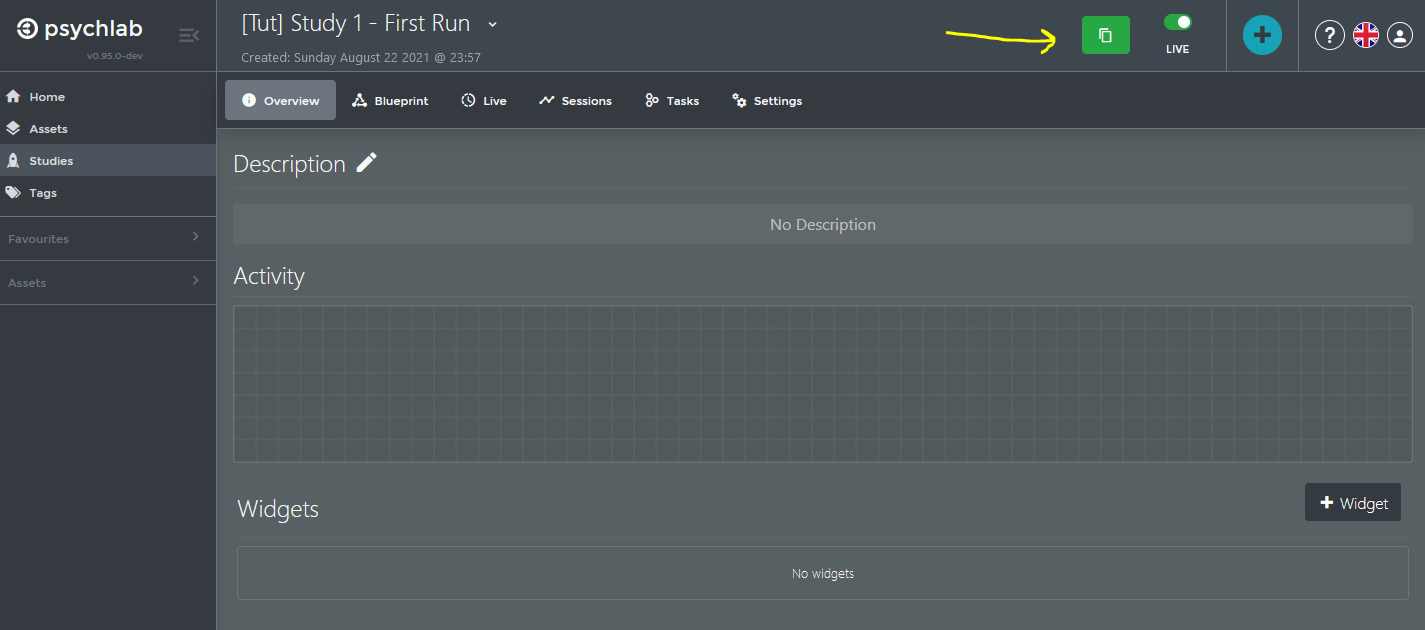
- Click on the green “copy” icon to copy the web address of the study (identified by the yellow arrow in the screen shot above). Open a new web browser window in private or incognito mode to test the study.
The survey stores locally whether you have participated in a particular study and does not let you complete it more than once. The only way for you to visit a study multiple times for testing is to open it in a private browser mode, which deletes the locally stored information between testing sessions.
In case you need to fix something:
- If something is wrong with the flow of the study and you want to fix that (e.g. the wrong form appeared), find your study blueprint under “Study Blueprints” (first switch to the “Assets” work area), click on the “...” on its icon and pick “Edit”. Make your changes to the flow and save.
- If something is wrong with any of the forms and you want to fix them (e.g. there is a typo in one of the texts), switch to the “Assets” work area and find the form under “Study Elements”. Click on the vertical dots to the far right after the name of the form and pick “Edit”. Make your changes and save.
- If anything gets fixed, you have to launch a new study that contains your updated study blueprint or forms. When you create a new study, it will always pick the latest study bluprint, but if any forms have been updated, it will warn you and ask if you want to update to the latest version of the forms. Press the “Update” button to do that.
After verifying that your study is up and running properly, share your study web link with those you want participating in your study. They can all use the same web link to access the study - new sessions with unique IDs will be created on the fly for each participant, which you will be able to monitor under “Live” (while they are connected) and “Sessions” (once they are completed).