Satisfaction rating
Create a new Study Element that asks participants to rate their satisfaction and write an open text comment
- Create a new “Form” element, call it something like “[Tut] Rating” and start editing it (see above). Change the name of the section from “(Page 1)” to “Main Page”.
- Press the “+” and add a “Linear Scale” item. Change the title “New Linear Scale” to “Please Rate”.
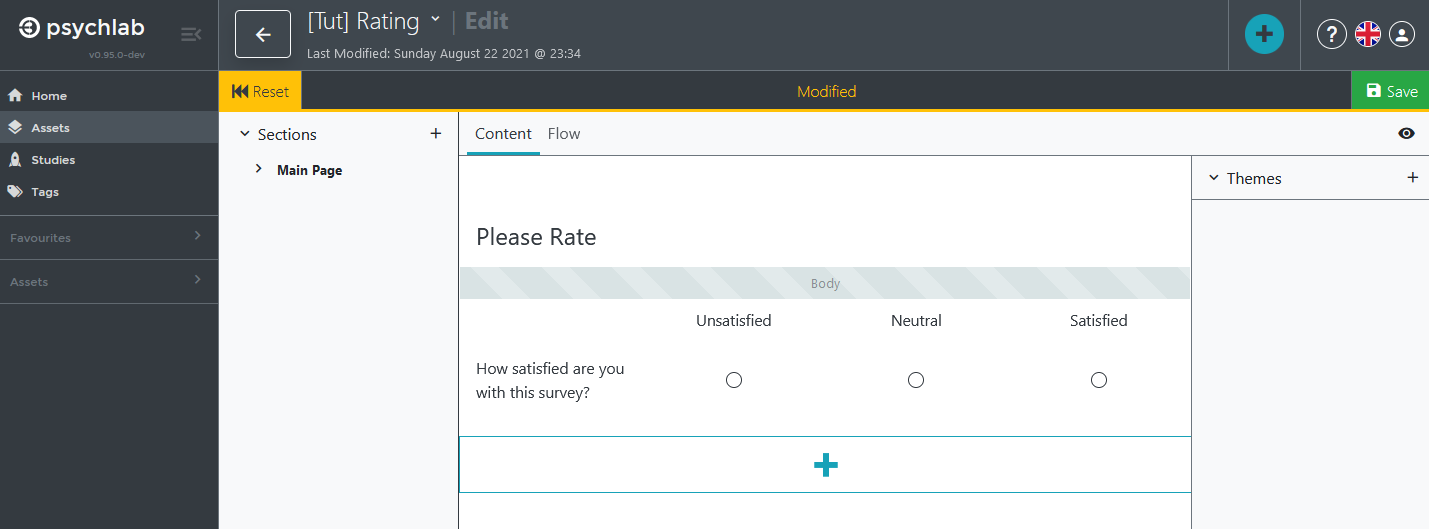
- Click on the “A/B” block to open the Linear Scale editor. We want one question with three possible answers on a linear scale. First we create the scale. In the first line, replace “Min” with “Unsatisfied”. Write “Neutral” in the line below that. Write “Satisfied” in the third line. There are two more lines because this is by default a 5 item scale. Get rid of the two extra lines by clicking on the “X”-es at the end of the lines. Under “Rows” replace “A” with the question “How satisfied are you with this survey?”. Delete the line with “B” in it by clicking on the “X” at the end. Press “Done”. You should end up with something like this:
- Press the large “+” and add an “Answer” item. Change the title “New Answer” with the text “Comments”. Add the text “Feel free to write any additional comments below” to the “Body”.
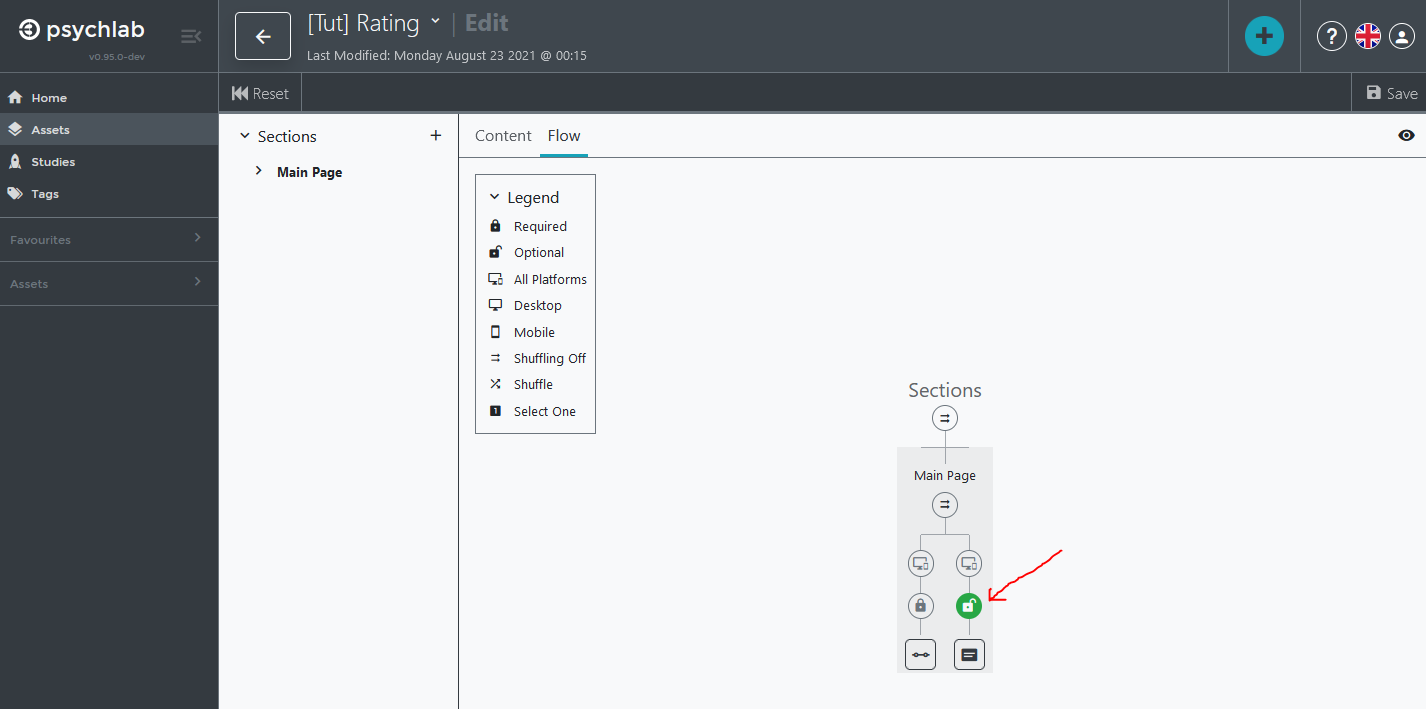
- Let’s make the “Comments” optional. Switch the form editor from “Content” to “Flow” by clicking on “Flow” just above the “Please Rate” item. You now see a flow schemata of the form you are editing. The little “Lock” icon above each item indicates that the item requires an answer. Click on the “Lock” icon just above the “Answer Box” icon to make it open, which marks it as optional. See below:
NOTE
Multiple items that belong to the same SECTION appear on the same page. If you wanted the open comment box to appear on a separate page, you could add a new section (click “+ Section” on the left) and add the item there instead.
- Save and go back to “Content”.
- Assign a color theme to this form by pressing the “+” next to “Themes” and pick “Light” and preview your form with the eye icon in the upper right.
- Click on the green “Save” icon in the upper right.
- Close the Form edit screen and return to the Assets area by clicking on the back arrow at the top of the screen (next to the name of your form).