Demographic information
Create a new Study Element that lets you gather demographic information
- Create a new “Form” element, call it something like “[Tut] Background” and start editing it.
- Change the name of the section by clicking on the dots that appear when you mouse over “Page 1”, pick “Rename” and type “Main Page”.
- Click on “+” and select the “Multiple Choice” item.
- Change the title from “New Multiple Choice” to “Your Age”.
- Click on the “A/B/C” block to open the options dialog. Fill in the options “19 and younger”, “20- 49” and “50 and older” (if you need more options, you can always press “+”). Confirm with “Done”.
NOTE
You can preview form at any time by pressing the eye icon in the upper right.
- Press the large “+” and add a “Dropdown” item. Change the title of the item from “New Dropdown” to “Your Residence”.
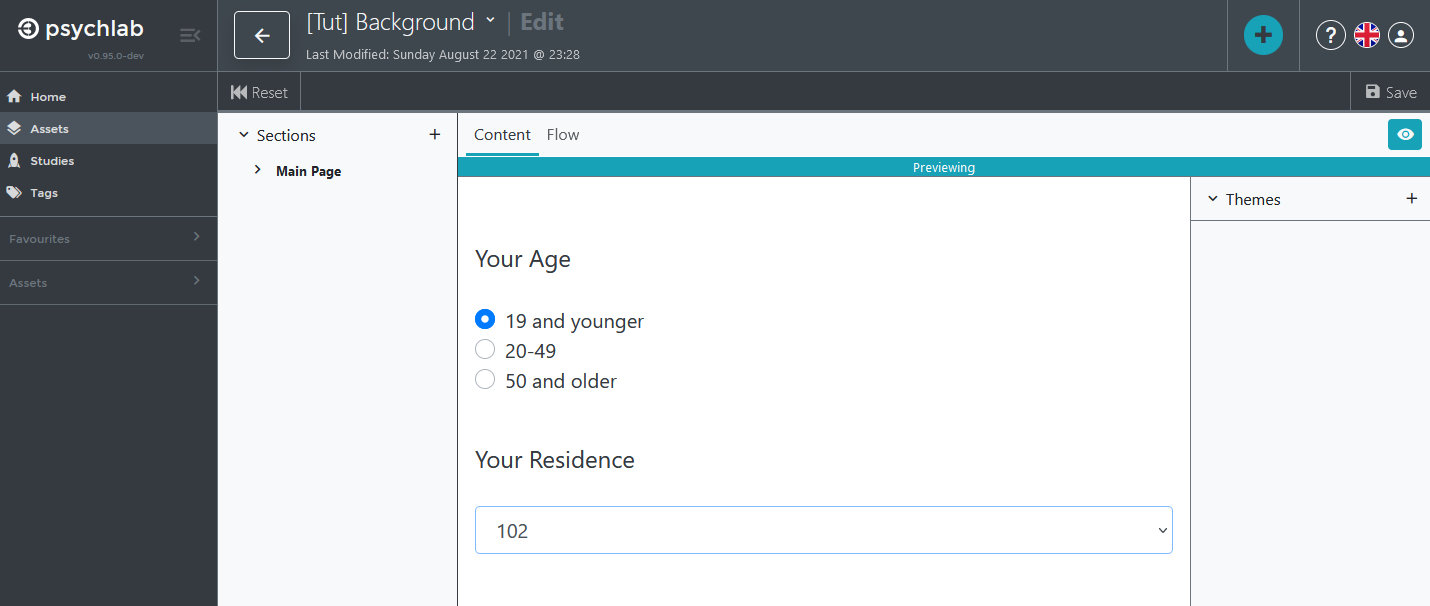
- Click on the “A” block to open the options dialog. Fill in the options “101”, “102” and “103”. After you are done, try previewing your form with the eye icon in the upper right, and you should see something like this (note you can pretend to fill in the form in preview mode):
- Now quickly change the color theme of your form by pressing the small “+” next to “Themes” on the right, and pick “Light”.
- Click on the green “Save” icon in the upper right.
- Close the Form edit screen and return to the Assets area by clicking on the back arrow at the top of the screen (next to the name of your form).