Colors
Change the background color of a Form element
Expand the background foldout in the Theme Window. Within the background fold out there are various settings.
- The window.background.color setting is used to change the background color..
- The window.background.image.url setting is used to set an image as the background.
- The window.background.image.opacity setting is used to adjust the transparency of the background image (if there is a background image).
- The window.background.image.repeat setting is used to modify how the background image appears.
- The window.background.image.fit setting is used to modify how the background image appears (this setting is only used when window.background.image.repeat is on the lowest setting).
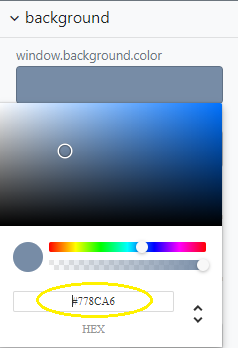
For now, we will only modify the background color, so click on the window.background.color button to change the background color of the Form element. The color palette window is shown in the image below, it contains two sliders and a color palette.
- The first slider is used to select a main color, and the circle button on the color palette is used to select a variation of the main color.
- The second slider is used to adjust the transparency of the color, when the slider is positioned all the way to the left the color is completely transparent, and the opposite goes when it is completely to the right, in which case the color is completely opaque.
- To choose the same color as in the image below you can copy and paste this color code
#778CA6into your own background color field (as shown in the below image).